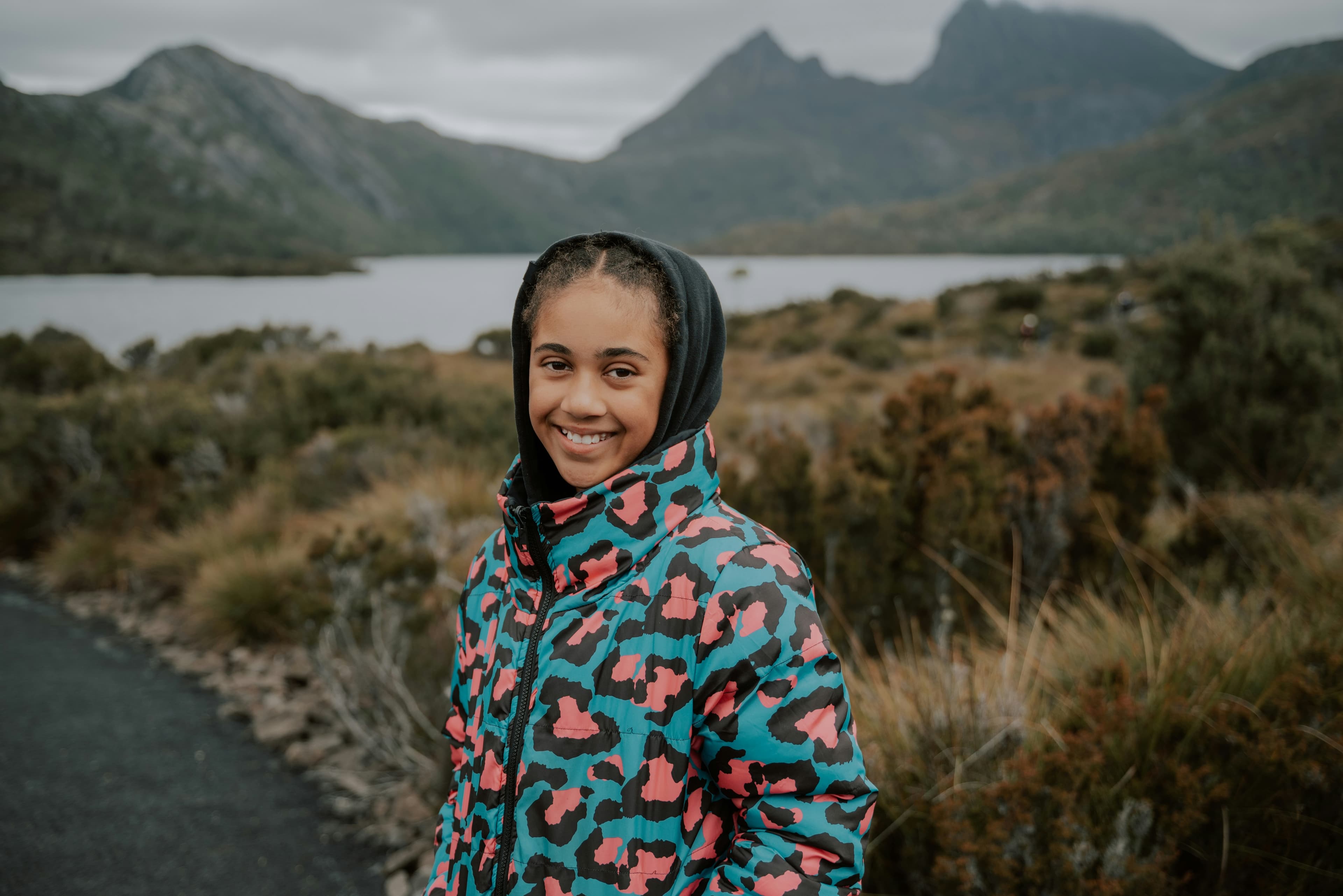
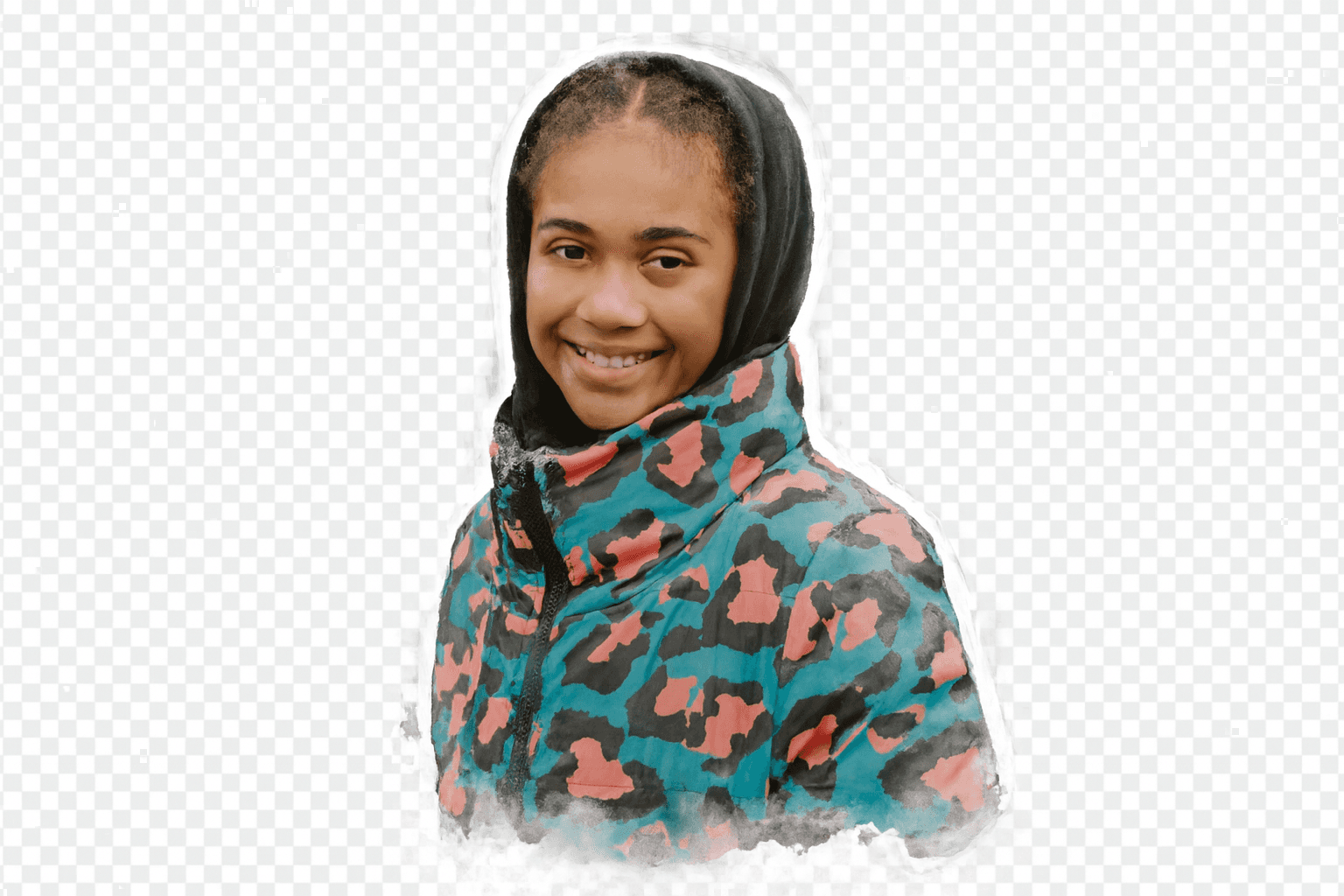
Photo to Sticker Guide
This guide helps you turn a photo into a sticker-style PNG with a clean cutout and strong composition.
What this guide covers
- Pick the right photo for a clean sticker result
- Choose a style that fits your subject
- Generate and download a transparent PNG sticker
When to use this
Use this when you have a real photo (selfie, pet, product, food) and want a sticker-like result for chat or collections.
Recommended settings
Style
- Start with Clean Cartoon for reliable sticker results
- Use Soft Kawaii for a cute look
- Try Ink Sketch or Watercolor when you want an artistic effect (best with simple inputs)
Aspect ratio (tool supports: 1:1, 3:2, 2:3)
- 1:1 for faces and most subjects
- 2:3 for full-body subjects
- 3:2 for wide compositions
Preview tips
Look for:
- Clear separation between subject and background
- No missing edges or odd cutout artifacts
Step-by-step
- Upload a clear image
- Choose a sticker style
- Pick an aspect ratio
- Generate
- Download PNG
Tips for better results
- Good lighting and sharp focus
- Avoid busy backgrounds
- Prefer one main subject
- Crop closer if the subject is small
Limitations
- Low-light photos can create noisy edges
- Complex hair/transparent objects may need retries
FAQ
Can I use a screenshot instead of a photo? Yes, but screenshots often have compression artifacts. Use the cleanest source you can.