
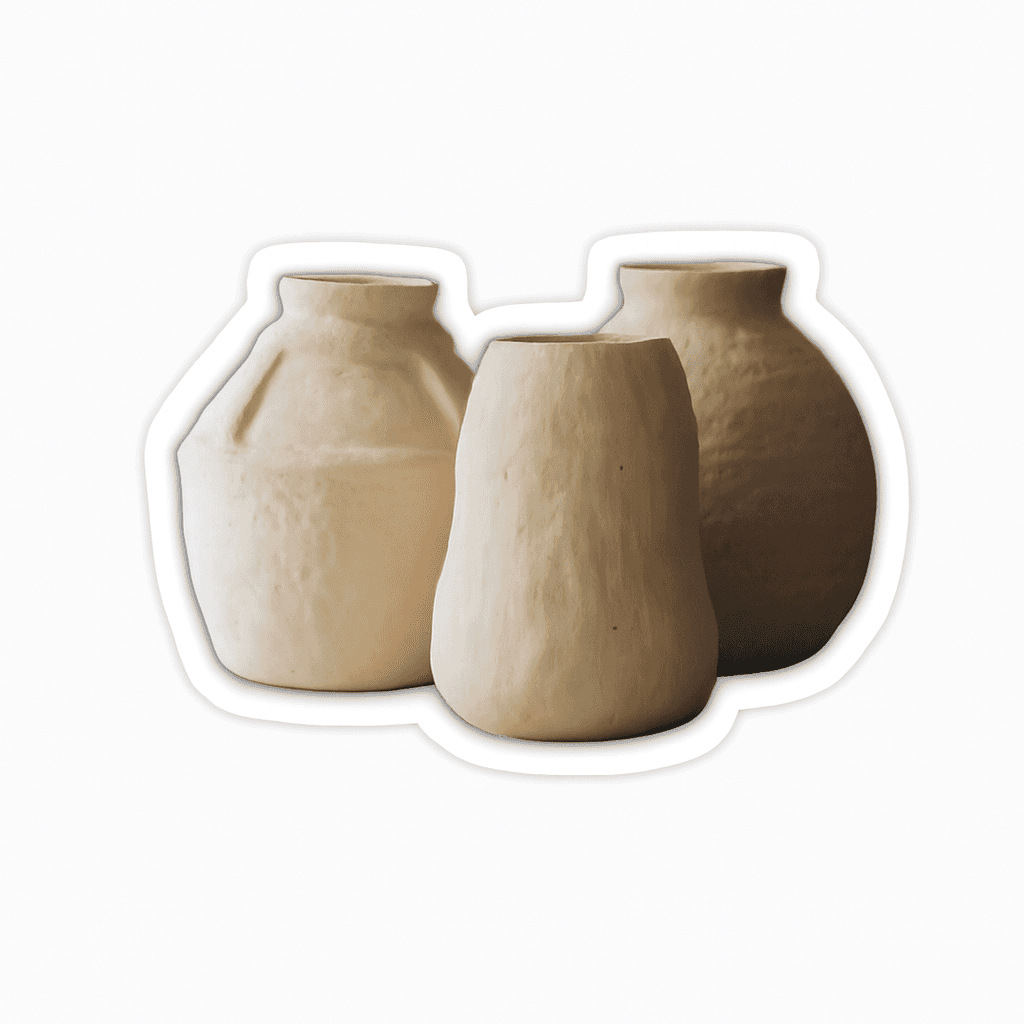
Transparent Sticker Maker
Use this guide when you need a sticker PNG that blends cleanly into chat, design, label, or social backgrounds.
Task promise
Create a transparent-background sticker from a clear single-subject image.
Workflow
- Upload a sharp photo with one main subject.
- Choose a clean sticker style such as Clean Cartoon.
- Generate after signing in with available credits.
- Inspect the edges, then download the transparent PNG.
FAQ
How do I confirm the result is transparent? Open the PNG in an editor or viewer that shows a checkerboard background.
What causes messy edges? Busy backgrounds, low contrast, and tiny subjects usually create weaker cutouts.