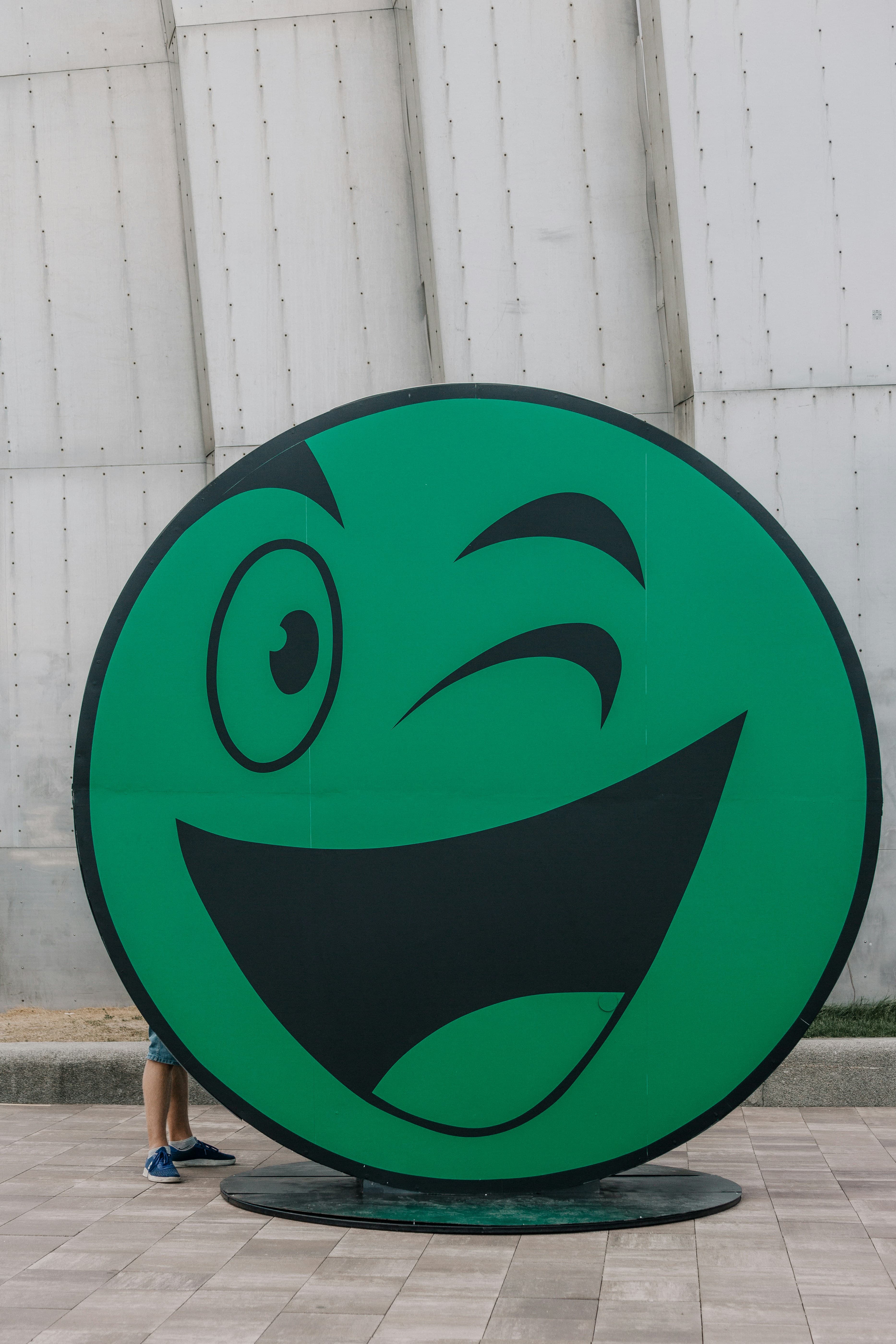

WhatsApp Sticker Maker
This guide helps you turn a photo or image into a clean, sticker-ready PNG you can use in WhatsApp.
What this guide covers
- Create a sticker-style image with a transparent background
- Choose a composition that reads well in chat
- Download a PNG asset and follow WhatsApp's current sticker guidelines
When to use this
Use this when you want a personal sticker from a selfie, pet photo, product shot, or a simple illustration - especially when you need clean edges and transparency.
Recommended settings
Style
- Start with Clean Cartoon for the most reliable "sticker" look.
- Use Soft Kawaii for a cute, friendly vibe.
- Avoid overly detailed sources if using Ink Sketch or Watercolor.
Aspect ratio (tool supports: 1:1, 3:2, 2:3)
- 1:1 for most chat stickers
- 2:3 for tall subjects (full body, standing pose)
- 3:2 for wide subjects (two people, horizontal pose)
Preview tips
Check that:
- The cutout edge is clean (no missing parts)
- Details still read at small size
- The subject fills the frame without being clipped
Step-by-step
- Upload a clear image
- Choose a sticker style (start with Clean Cartoon if unsure)
- Pick an aspect ratio (default 1:1)
- Generate
- Download PNG and follow WhatsApp's current sticker rules during upload
Tips for better results
- Use a single subject
- Prefer high contrast between subject and background
- Avoid busy scenes and tiny subjects
- Crop closer for faces and reactions
Limitations
- Crowded scenes may produce messy cutouts
- Small subjects can lose detail
- Complex hair/transparent objects may need retries
FAQ
Do I need a transparent background? For stickers, a transparent PNG usually looks cleaner across chat backgrounds.
Which style should I start with? Clean Cartoon is the safest default for sticker-like results.
Will this match WhatsApp's exact requirements? Requirements can change. Use this guide for creation, then confirm WhatsApp's current guidelines when uploading.